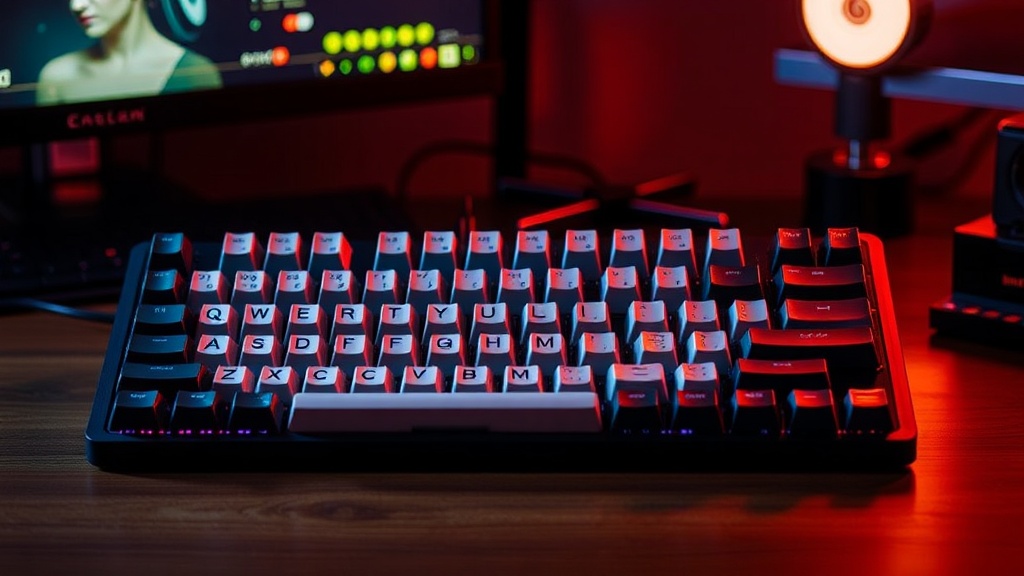
Why You Should Switch to a Dedicated Mechanical Keyboard

The average office worker spends roughly 1,500 hours per year typing. For many, this translates to millions of keystrokes that occur on membrane keyboards—thin, rubber-dome peripherals that are designed for cheap mass production rather than long-term durability or tactile precision. This post examines why upgrading to a dedicated mechanical keyboard is a functional investment in productivity and ergonomics rather than a mere aesthetic hobby. We will break down the engineering differences between switch types, the long-term cost-to-value ratio, and how to choose a model that fits your specific workflow.
The Engineering Gap: Membrane vs. Mechanical
To understand the value proposition, you have to look at the physical mechanism beneath your fingertips. Most standard keyboards use a membrane system: a single sheet of rubber that acts as a spring. When you press a key, you are essentially squishing a piece of silicone to complete an electrical circuit. This system is inherently imprecise. Because the "reset" point of the key is often mushy, users frequently suffer from "double-tapping" errors or missed inputs because the tactile feedback wasn't clear enough to signal a successful keystroke.
A mechanical keyboard replaces that single rubber sheet with individual, replaceable switches for every single key. Each switch consists of a housing, a spring, and a stem. This architecture provides three distinct advantages:
- Consistency: Every keypress feels identical. Whether you are hitting the 'A' key or the 'Shift' key, the resistance and travel distance remain constant.
- Durability: While a standard membrane keyboard is often rated for 5 to 10 million keystrokes before failure, a high-quality mechanical switch (like those from Cherry MX or Gateron) is typically rated for 50 to 100 million keystrokes.
- Programmability: Many mechanical boards allow for "N-Key Rollover," meaning you can press as many keys as you want simultaneously without the computer missing a command. This is critical for anyone running complex macros or heavy data entry.
Decoding the Switch: Linear, Tactile, and Clicky
The biggest mistake buyers make is treating "mechanical" as a single category. The "feel" of your keyboard is dictated by the specific switch type installed. If you buy the wrong one, you aren't just getting a different sensation; you are actively hindering your typing speed and potentially increasing finger fatigue.
Linear Switches (The Smooth Path)
Linear switches, such as the Cherry MX Red, have no tactile bump. The resistance is consistent from the moment you touch the key until it hits the bottom. These are favored by gamers because they allow for rapid, repetitive movements without the interruption of a physical bump. However, for professional writers or coders, the lack of feedback can lead to higher error rates because you don't "feel" when the key has actually been registered.
Tactile Switches (The Professional Standard)
Tactile switches, like the Cherry MX Brown, feature a small, noticeable bump in the middle of the keystroke. This bump tells your brain, "The key has been pressed." This is the sweet spot for most professionals. It provides enough feedback to prevent bottoming out (hitting the key too hard) while maintaining a fast typing cadence. If you spend eight hours a day in Microsoft Excel or VS Code, this is the category you should target.
Clicky Switches (The Auditory Signal)
Clicky switches, such as the Cherry MX Blue, add a distinct auditory "click" to the tactile bump. While this provides the ultimate level of certainty, it comes with a heavy social cost. If you work in an open-plan office or a shared home office, the constant high-pitched snapping can become a significant distraction to those around you. Use these with caution.
The Economic Reality: Is It Worth the Upfront Cost?
A decent mechanical keyboard will cost between $80 and $150, whereas a basic Logitech or Dell membrane keyboard can be picked up for $15. At first glance, the math doesn't look great. However, the "so what?" comes down to the lifecycle of your hardware. A cheap membrane keyboard is a disposable item; once the rubber dome loses its elasticity or a single key fails, the entire unit is e-waste. You are essentially paying for the same $20 keyboard every two years.
A mechanical keyboard is a long-term tool. Because many models feature "hot-swappable" PCBs (Printed Circuit Boards), you can replace a single broken switch for cents rather than replacing the whole board. Furthermore, if you find that your typing style has changed—perhaps you moved from heavy data entry to more casual browsing—you can swap the switches themselves to change the feel of the board. This modularity makes it a piece of infrastructure rather than a consumable.
"In logistics, we don't look at the cost of the part; we look at the cost of the downtime. A keyboard that fails or causes fatigue is a direct tax on your hourly output."
Ergonomics and Desk Setup Integration
Upgrading your keyboard is rarely a standalone event. If you are investing in better tactile feedback, you should also consider how that keyboard interacts with your existing peripherals. For instance, if you are building a highly efficient workspace, you might already be looking into smart home devices that pay for themselves to automate your lighting or temperature. Your keyboard is part of that physical ecosystem.
When selecting a board, pay attention to the form factor:
- Full-Size (100%): Includes the number pad. Essential for accountants, data analysts, and anyone working heavily with numerical input.
- Tenkeyless (TKL/80%): Removes the number pad. This allows your mouse to be closer to your body, reducing shoulder strain and creating more room on a standard desk.
- 60% Layout: Extremely compact. It removes everything except the core typing keys. While great for saving desk space, it requires learning "layers" (using a function key to access numbers or punctuation), which can initially slow down your workflow.
Common Pitfalls to Avoid
Before you hit "buy," avoid these three common mistakes that turn a professional tool into a frustrating toy:
1. Ignoring the Build Quality: A mechanical keyboard with a plastic chassis will feel hollow and "pingy." Look for keyboards with aluminum or high-density plastic housings. A heavy keyboard stays put on your desk; a light one slides around during intense typing sessions.
Final Verdict
A mechanical keyboard is not a luxury; it is a tool for anyone whose primary output is digital text. By moving away from the unpredictable, short-lived nature of membrane keyboards, you gain control over your tactile environment. You reduce the margin for error, increase the lifespan of your hardware, and ultimately, you make the act of typing less of a chore and more of a precise, repeatable process. If your job involves a keyboard, stop treating it as an afterthought.