USB-C Cables in 2026: The No-Hype System That Stops Desk Chaos

USB-C Cables in 2026: The No-Hype System That Stops Desk Chaos
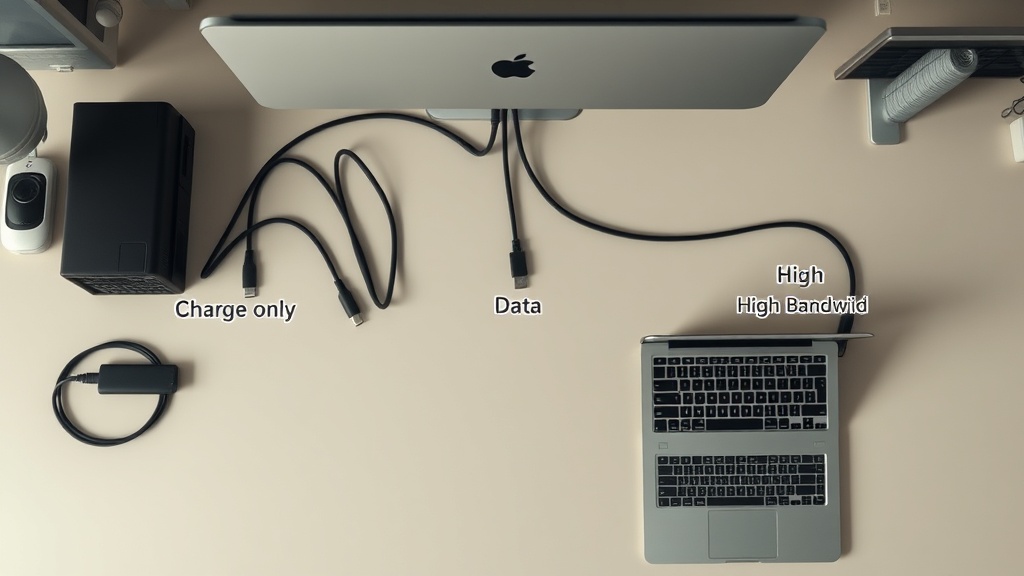
You do not have a USB-C problem. You have a labeling problem.
Most people own five to ten USB-C cables, and half of them are mystery meat: no visible capability markings, no known purchase record, and no clue whether they can handle display output, fast storage, or full laptop charging.
Then Monday starts, your external monitor goes dark, and somebody blames the dock.
A lot of the time, it is the cable.
What Changed (And What Did Not)
As of December 11, 2024, USB-IF published USB4 Specification v2.0 in its document library. USB-IF also states USB4 can run up to 80 Gbps over 80 Gbps certified cables, with compatibility scaling based on what both ends support.
In plain English: the ceiling got higher, but the old confusion did not disappear.
At the same time, USB-IF now requires USB-C to USB-C cables in its compliance program to carry power markings (60W or 240W), and for many cable classes, data-rate markings too. That is progress. But your cable drawer still has older stock and random marketplace cables that predate consistent labeling.
So yes, the standards are maturing. The real-world cable pile is still a mess.
The Core Reality: USB-C Is a Connector Shape, Not a Capability Guarantee
Microsoft says this directly in Surface support docs: not all USB-C cables support all features.
Apple says the same thing from another angle: its USB-C Charge Cable can charge, but is limited to USB 2.0 data and no video, while Thunderbolt Pro cables support much higher data/video capabilities.
Different logos, same lesson: if you buy by connector shape, you will eventually lose time.
My Practical Cable Stack (Three-Tier System)
If you run a laptop + monitor + phone + accessories setup, stop buying one "do-everything" fantasy cable for every use. Build a small tiered kit.
Tier 1: Charging-Only / Low-Speed Utility
Use these for power bricks, overnight charging, battery packs, keyboard charging, and anything where speed does not matter.
Rule: treat them as disposable utility lines. Do not use them for monitor troubleshooting.
Tier 2: Everyday Data + Reliable Charging
Use these for phone-to-laptop transfer, accessory hubs, and routine dock use where you are not pushing high-end display chains.
Rule: buy certified, label each cable physically, and keep one spare in your bag.
Tier 3: High-Bandwidth Display / Dock / Fast Storage
Use these for external NVMe enclosures, high-refresh displays, and pro docks where failure costs real time.
Rule: keep this tier short, known, and documented. You do not need ten. You need two that are verified and never leave your desk unless absolutely necessary.
This is exactly how industrial teams manage critical spares: controlled inventory, known spec, zero guessing.
The 15-Minute Cable Audit (Do This Once)
- Put every USB-C cable on a table.
- Split into
knownandunknown. - Any cable without clear markings or purchase provenance goes to
unknown. - Assign jobs:
charge-onlygeneral datahigh-bandwidth
- Label both ends with a tiny tag or heat-shrink marker.
- Store high-bandwidth cables separately from everything else.
- Retire unknown cables from mission-critical workflows.
That one pass usually removes 80% of desk-side troubleshooting drama.
How to Buy Without Getting Burned
When evaluating cables, I use a simple three-check gate:
- Certification signal
- USB-IF maintains a product search list for certified products. Use it as a sanity check.
- Visible capability marking
- If power/data ratings are unclear, skip it.
- Use-case fit
- Match the cable to the actual bottleneck: charging wattage, display load, or storage throughput.
If any one of these is weak, I pass.
No-Hype Translation
Marketing line: "One cable to rule your entire workstation."
Translation: "You are about to mix incompatible requirements and spend your week isolating failures."
You can absolutely own a few high-capability cables. But pretending every cable should do every job is how people create their own help desk tickets.
Impact Scorecard (March 13, 2026)
Topic: Practical USB-C cable management and buying decisions for work setups
- Accessibility: 9/10
- Cheap to implement; mostly process, labeling, and discipline.
- Utility: 9/10
- Immediate reduction in display/dock troubleshooting time.
- Longevity: 8/10
- Standards evolve, but a tiered cable policy stays useful across hardware cycles.
Composite: 8.7/10
Bottom Line
If your workflow depends on external displays, docks, or fast storage, cable policy is now operations policy.
Treat USB-C cables like infrastructure, not drawer clutter.
Two known high-bandwidth cables. A few labeled general-purpose cables. Everything else either tagged for charging-only or removed from critical paths.
So what?
You get fewer "random" failures, faster root-cause checks, and less weekday friction for the price of a 15-minute audit.
That is the kind of boring fix that actually works.
Sources
- USB-IF: USB4 overview and key characteristics (including up to 80 Gbps over certified 80 Gbps cables): https://www.usb.org/usb4
- USB-IF: USB4 Specification v2.0 document listing (dated December 11, 2024): https://www.usb.org/document-library/usb4r-specification-v20
- USB-IF: USB-C to USB-C cable logo requirements (60W/240W and data-rate marking requirements): https://www.usb.org/cable_connector
- USB-IF: Public product search for certified USB products: https://www.usb.org/products
- Intel Newsroom (September 12, 2023): Thunderbolt 5 at 80 Gbps bidirectional, up to 120 Gbps Bandwidth Boost, built on USB4 v2: https://newsroom.intel.com/client-computing/intel-introduces-thunderbolt-5-standard
- Microsoft Support: "Not all USB-C compatible cables support all features": https://support.microsoft.com/en-us/surface/troubleshoot-problems-with-usb-c-on-surface-e32fea6d-8df1-eda6-1a8b-a1d1b88fd62e
- Apple Support (Published November 8, 2024): Thunderbolt Pro cables vs USB-C Charge Cable capability differences: https://support.apple.com/en-us/118204
Excerpt: USB-C cable failures are usually inventory and labeling failures. Here's a practical 2026 system to cut desk chaos and stop wasting time on cable roulette.
Category: How-To & Setup
Tags: usb-c, usb4, thunderbolt 5, cable management, setup guide