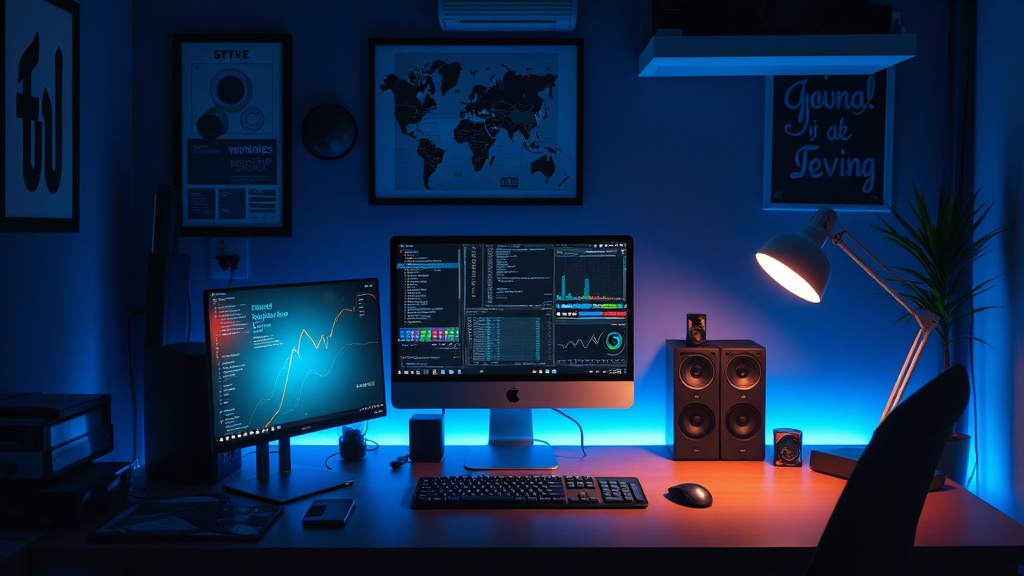
How to Optimize Your Home Office Tech Setup for Maximum Efficiency

Setting up a home office that actually works is more than just picking a desk and slapping a laptop on it. The reality? A poorly planned workspace can cost you hours of productivity, create unnecessary stress, and even lead to chronic discomfort. Here’s how to systematically approach your tech setup for an optimized, efficient environment.
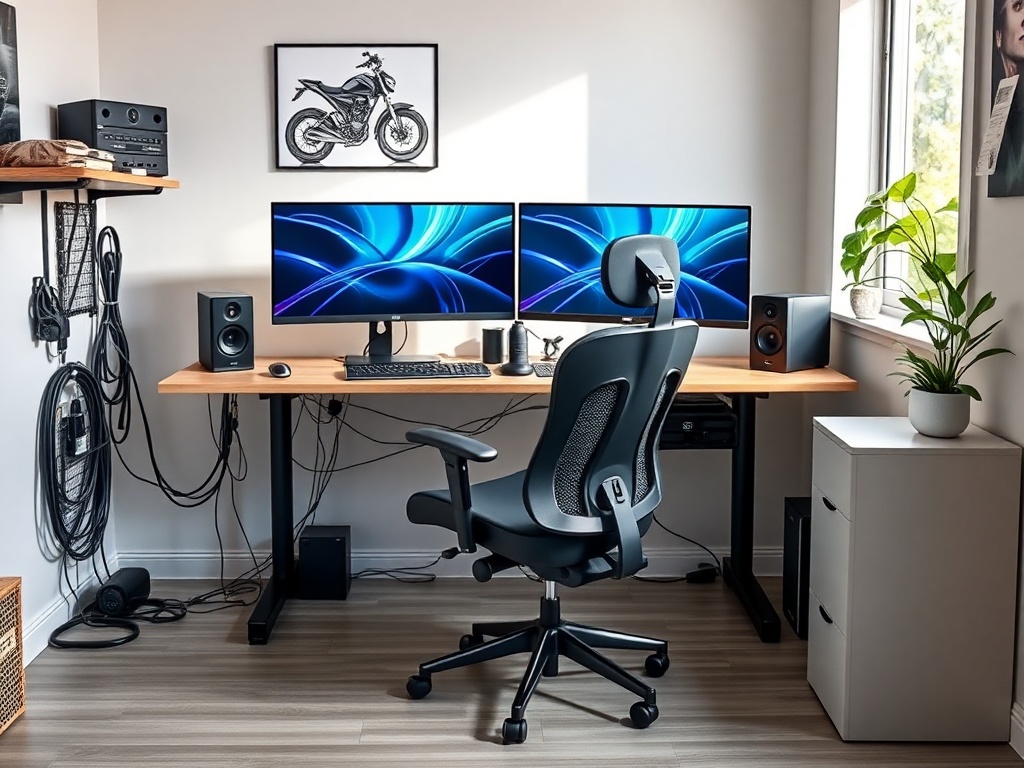
Step 1: Assess Your Workflow and Device Needs
Before buying anything, pull the thread on your workflow. Identify tasks that consume the most time and determine which devices or tools support them. Ask yourself: are you doing more data entry, content creation, video editing, or coding? This will dictate whether you need a high-performance laptop, multiple monitors, or specialized peripherals.
Mapping out your workflow ensures that every piece of hardware earns its keep. Don’t let marketing hype decide your purchases; focus on practical utility.
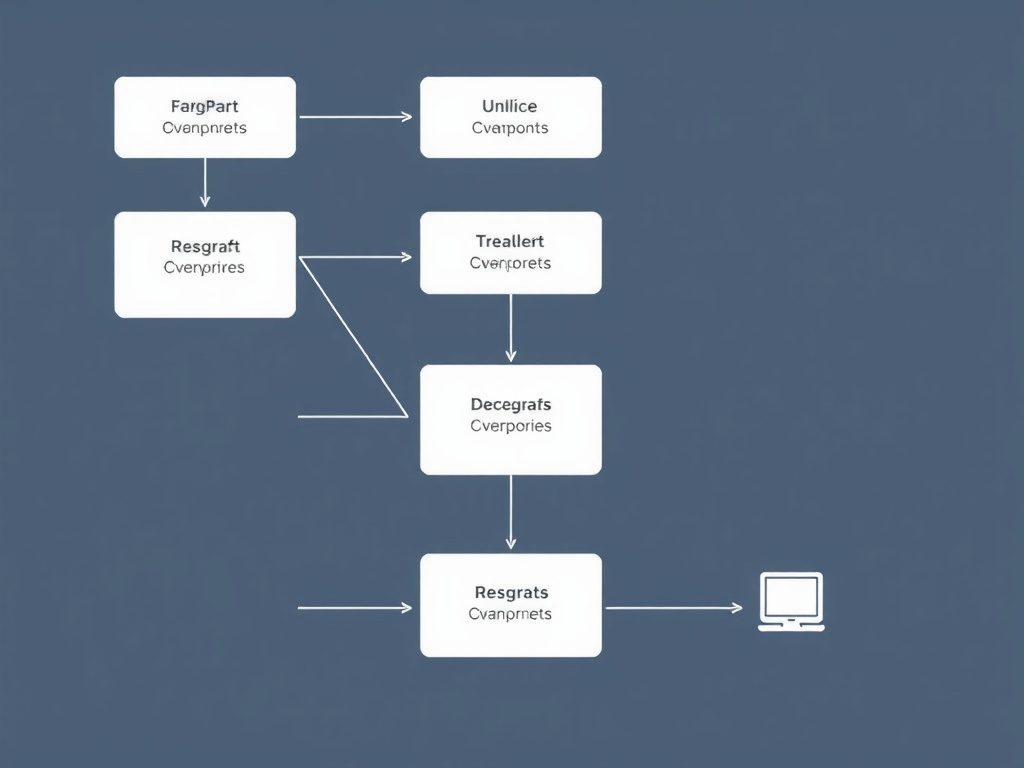
Step 2: Optimize Desk and Ergonomics
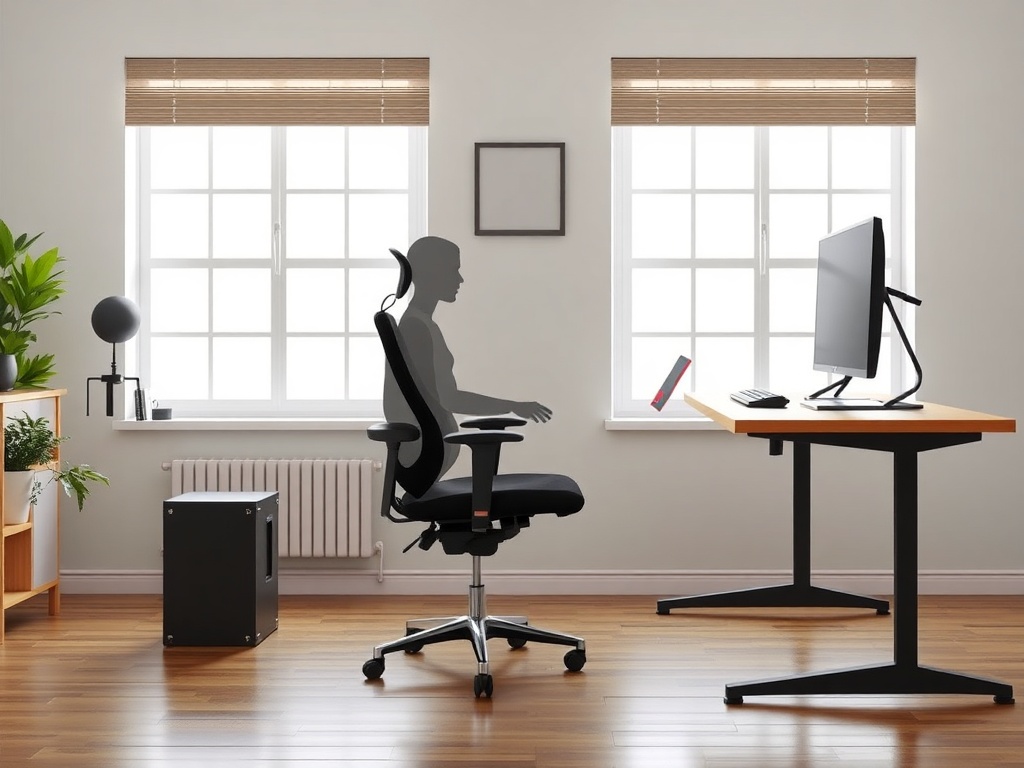
Ergonomics isn’t optional. A chair that supports your lower back, a desk at the correct height, and monitors positioned at eye level prevent fatigue and long-term injury. Even if the hardware is top-notch, a misaligned workstation can undermine your efficiency.
Measure your seating height, desk height, and monitor positions. If needed, invest in monitor stands, keyboard trays, or a sit-stand desk. Blue-collar analogy: this is like ensuring your loading dock ramps are level before trucks arrive—everything else flows better once the foundation is sound.
Step 3: Streamline Hardware and Peripherals
Once your workflow is mapped and the desk is properly configured, audit your hardware. Limit redundant devices and invest in versatile peripherals. Multi-port docking stations, wireless keyboards, and programmable mice can reduce clutter and improve workflow. Remember: each gadget should solve a real problem, not just look flashy.
Follow the incentive structure—sometimes cheaper devices create more headaches than higher-quality, durable tools.
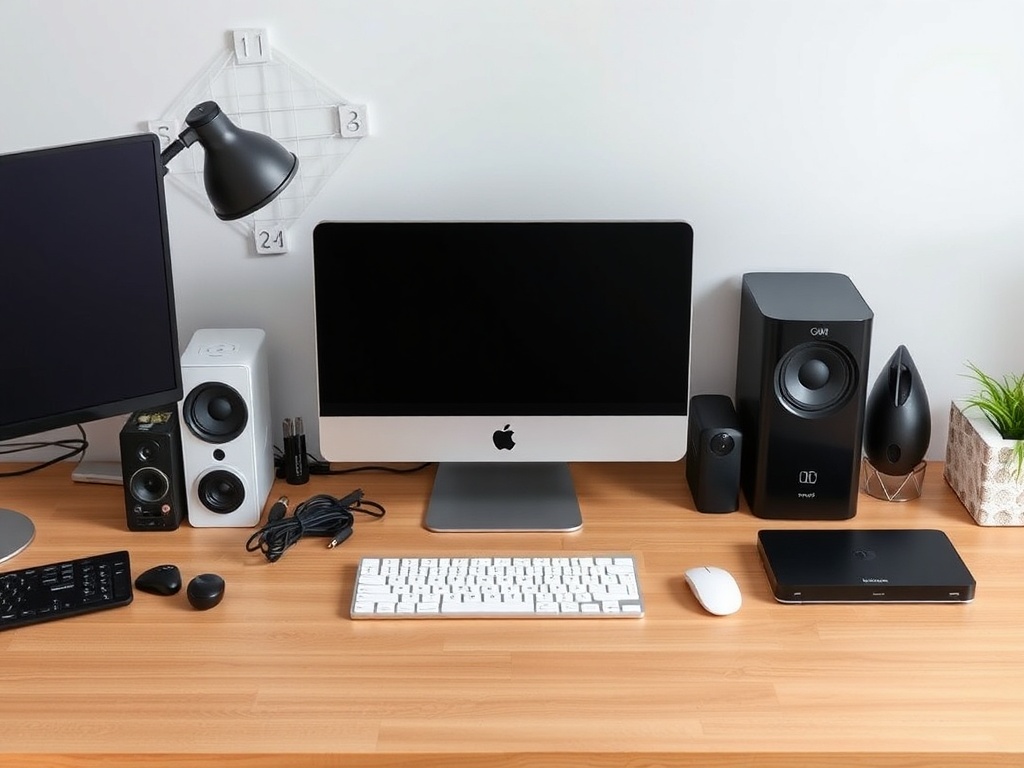
Step 4: Manage Cables and Connectivity
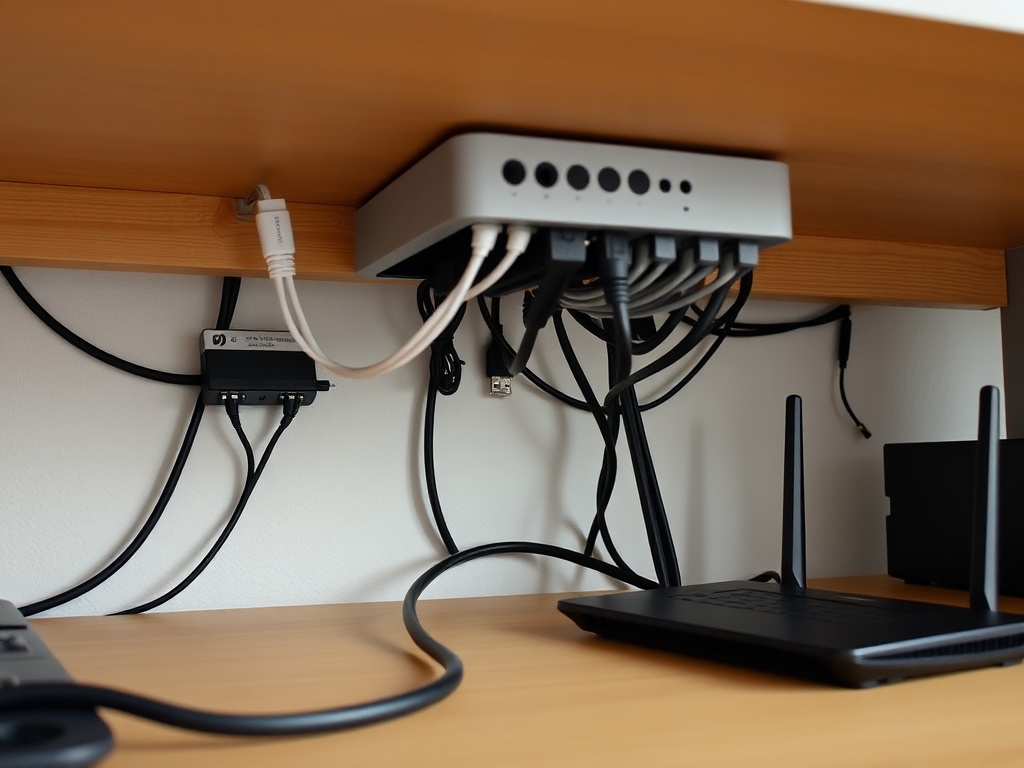
Nothing kills productivity faster than constantly untangling cables or losing network connectivity. Use cable trays, Velcro ties, or under-desk organizers to keep cords out of the way. For connectivity, ensure your Wi-Fi or wired network is capable of handling your devices without bottlenecks. A single weak link can cripple multiple processes—like a clogged valve in a warehouse pipe.
Step 5: Configure Software and Automation
Hardware is only part of the equation. Set up software tools that reduce repetitive work. Automation scripts, cloud storage integration, and keyboard shortcuts can save hours weekly. Align software with your workflow: if you frequently switch between apps, consider a window management system to avoid wasted clicks.
No-hype translation: automation isn’t magic; it’s a reliability upgrade for mundane tasks.

Step 6: Lighting and Environmental Considerations
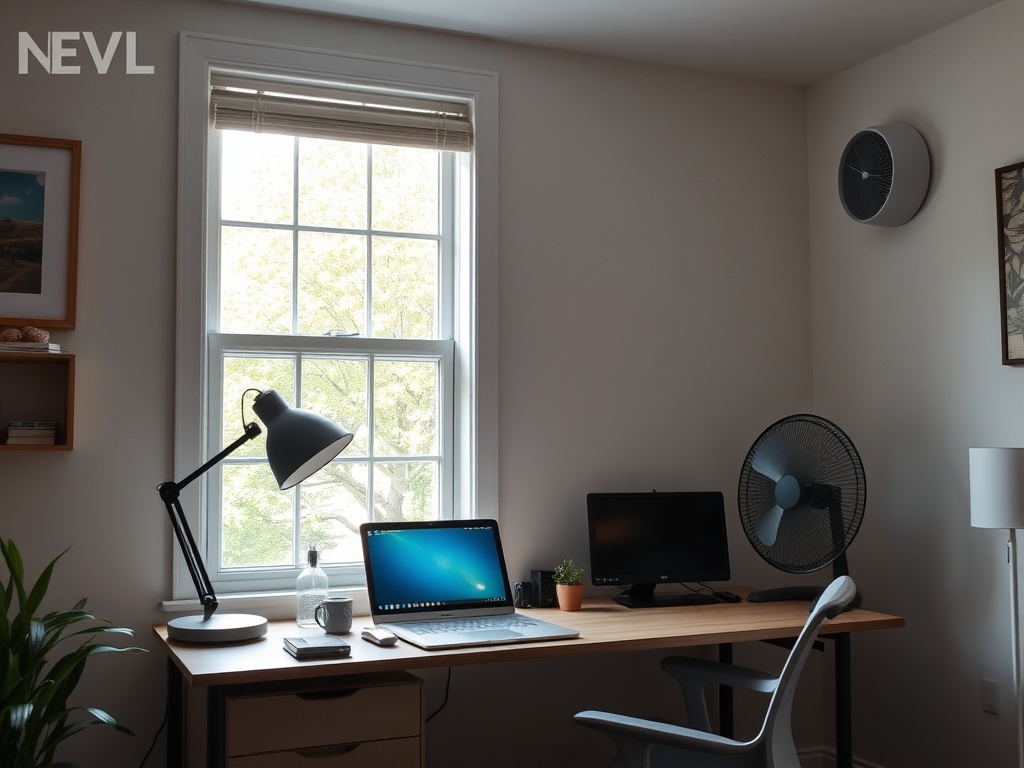
Proper lighting reduces eye strain and improves focus. Ideally, combine natural light with adjustable LED task lighting. Temperature and airflow matter too—your environment should keep you alert without becoming uncomfortable. Think of it like maintaining HVAC in a warehouse: small tweaks in environmental controls yield outsized productivity gains.
Step 7: Test and Iterate
Finally, test your setup over a week or two. Track pain points, friction in workflows, or recurring interruptions. Adjust as needed—whether it’s repositioning a monitor, upgrading a peripheral, or automating an extra task. Iteration ensures your setup evolves with your workflow rather than becoming obsolete the day you finish building it.

Conclusion
Optimizing a home office isn’t glamorous, but it is impactful. By systematically assessing your workflow, refining ergonomics, streamlining hardware, managing connectivity, optimizing software, and controlling environmental factors, you create a workspace that supports efficiency and well-being. Follow these steps, measure outcomes, and iterate—because a functional foundation always beats flashy aesthetics.
Steps
- 1
Assess Your Workflow and Device Needs
- 2
Optimize Desk and Ergonomics
- 3
Streamline Hardware and Peripherals
- 4
Manage Cables and Connectivity
- 5
Configure Software and Automation
- 6
Lighting and Environmental Considerations
- 7
Test and Iterate