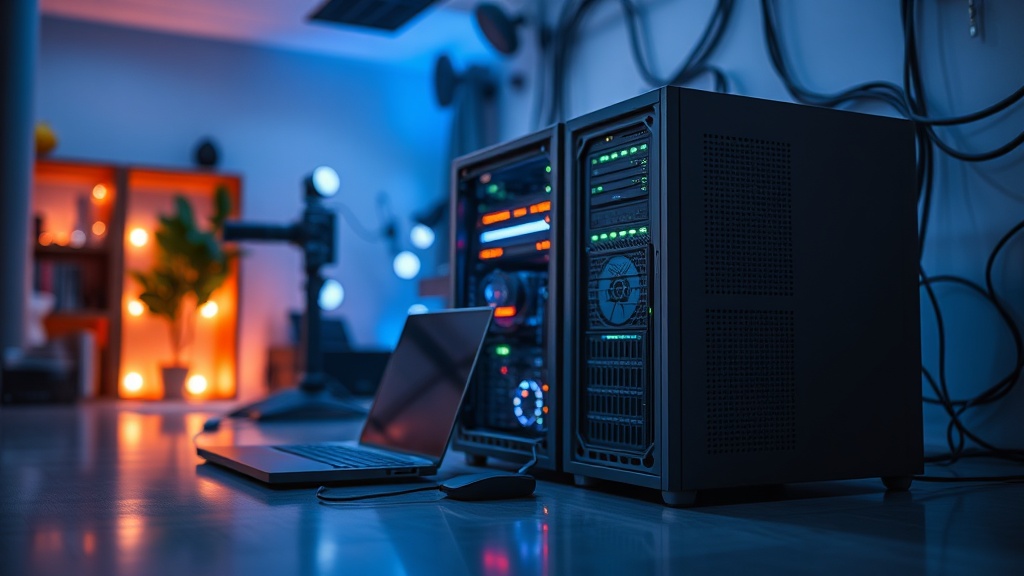
Building a Low-Power Home Server for 24/7 Services

A standard enterprise-grade server consumes enough electricity to power a small household, often idling at hundreds of watts even when doing absolutely nothing. For the home user, this isn't just a waste of energy; it is a direct hit to the monthly utility bill and a massive heat generator in a small living space. This guide outlines how to construct a low-power home server designed for 24/7 uptime, focusing on minimizing "vampire draw" while maintaining enough computational headroom to run essential services like media streaming, file storage, and home automation. We will focus on the hardware selection, the software stack, and the physical optimization required to keep your electricity costs low without sacrificing reliability.
The Core Philosophy: Efficiency Over Raw Power
In the industrial logistics world, we don't use a heavy-duty forklift to move a single cardboard box. The same principle applies here. Most hobbyists make the mistake of repurposing an old desktop PC or a discarded workstation as a home server. While these machines are powerful, their "idle power consumption"—the energy used when the computer is sitting there doing nothing—is often unacceptably high. A modern high-end CPU might be fast, but if it draws 60 watts just to keep the clock running, you are paying for performance you aren't using.
The goal of a low-power build is to optimize for the 95% of the time the machine is idling. You want a system that draws between 5W and 15W during normal operation, only spiking when a specific task, like a Plex transcode or a scheduled backup, is triggered. This requires a shift in mindset from "peak performance" to "performance-per-watt."
Hardware Selection: The Silicon Foundation
When choosing your processor, look toward architectures designed for efficiency rather than brute force. There are three primary paths for a low-power build: Single Board Computers (SBCs), Mini PCs (NUCs), and specialized low-power x86 builds.
Single Board Computers (SBCs)
The most efficient route is often an ARM-based single board computer. Devices like the Raspberry Pi 5 or the Odroid series are the kings of low power. A Raspberry Pi 5 can run complex tasks while drawing significantly less than 10W. These are excellent for lightweight services like Pi-hole (DNS sinkhole), Home Assistant, or a simple file server. However, they have limitations regarding I/O throughput and the ability to handle heavy video transcoding. If you plan on building a high-performance home lab with single board computers, you must account for the fact that these are specialized tools, not general-purpose heavy lifters.
Mini PCs and NUCs
For users who need more "oomph"—perhaps for running multiple Docker containers or a media server—Intel NUCs or similar Mini PCs are the sweet spot. Look specifically for Intel processors with "QuickSync" technology. QuickSync is a hardware-accelerated video encoding/decoding engine built into the integrated graphics. It allows the CPU to handle video streaming tasks (like Plex or Jellyfin) without spiking the power consumption of the main processor cores. An Intel N100-based Mini PC is a current industry favorite because it offers incredible efficiency with enough power to handle 4K playback and several background services simultaneously.
The Power Supply Unit (PSU) Factor
If you are building a custom x86 machine, do not overlook the PSU. Most standard ATX power supplies are highly inefficient at low loads. If your server only draws 30W, but you have a 750W power supply, a huge percentage of that energy is lost as heat due to poor efficiency. For a low-power build, look for "80 Plus Gold" or "Platinum" rated units, or better yet, use an external DC power brick (like those used for laptops) if your build allows it. DC-to-DC power delivery is inherently more efficient for low-wattage systems because it avoids the conversion losses of an AC-to-DC internal power supply.
Storage Strategy: Speed vs. Longevity
Storage is where most home servers fail the "low power" test. Mechanical Hard Disk Drives (HDDs) are power-hungry. Even when idling, a 3.5-inch enterprise drive can pull 5W to 7W just to keep the platters spinning. If you have an eight-bay NAS setup, your drives alone could be consuming 50W before you even count the CPU.
- SSD for OS and Active Data: Use NVMe or SATA SSDs for your operating system and frequently accessed files. SSDs have virtually no moving parts and significantly lower idle power draw.
- HDD for Bulk Storage: If you must use HDDs for large media libraries, look into "Green" or "Red" rated drives designed for NAS environments. These are optimized for lower heat and lower power consumption.
- Spin-down Management: Configure your operating system to spin down hard drives after a period of inactivity. While there is a slight delay when a drive "wakes up," the cumulative energy savings over a year are substantial.
The Software Stack: Lean and Mean
The operating system you choose dictates how much "background noise" your hardware has to process. A heavy GUI (Graphical User Interface) is a waste of resources in a headless server environment.
Linux is Non-Negotiable
For a 24/7 service, skip Windows. Windows has a high baseline of background processes, telemetry, and update cycles that keep the CPU active. Instead, use a lightweight Linux distribution. Debian is the gold standard for stability and low overhead. Ubuntu Server is a close second due to its massive community support. If you want something even more specialized, look at TrueNAS Scale for storage-heavy builds or Proxmox for virtualization.
Containerization with Docker
Instead of installing services directly onto the OS, use Docker. Containers allow you to run multiple isolated services (like a VPN, a web server, and a database) while sharing the same underlying kernel. This is much more efficient than running multiple Virtual Machines (VMs), which each require their own allocated slice of RAM and CPU overhead. Using a tool like Portainer can give you a visual interface to manage these containers without the heavy resource footprint of a full desktop environment.
Optimization and Maintenance
Once the hardware is assembled and the software is running, the work isn't over. You must actively manage the system to ensure it stays within its power budget.
- BIOS/UEFI Tuning: Enter your BIOS and look for settings like "C-States" or "Intel SpeedStep." Ensure these are enabled. These settings allow the CPU to drop its voltage and clock speed during idle periods. Also, disable any unnecessary hardware like onboard serial ports, unused audio controllers, or extra SATA controllers that you aren't using.
- Monitor Your Draw: You cannot manage what you do not measure. Buy a cheap, plug-in kilowatt meter (often called a "Kill A Watt") to measure the actual power draw of your server at the wall. This provides the "ground truth" that software-based reporting often misses.
- Thermal Management: Heat is the enemy of efficiency. Ensure your server has adequate airflow, but don't overdo it with high-RPM fans. A single, large, slow-moving Noctua fan is much more efficient and quieter than three small, high-speed fans.
"The most efficient component in a server is the one that is turned off."
This is a mantra for the low-power enthusiast. Every service you run, every peripheral you plug in, and every unnecessary background process you allow to run adds a fraction of a watt to your bill. Over a year, those fractions turn into real money. Build for the task at hand, not for the task you might do in three years. If you only need to host a small personal cloud, don't build a machine that is capable of running a Minecraft server for fifty people. Build the lean, efficient machine that does exactly what you need, and nothing more.